Java builder
You want to move from a 3D asset toward a Minecraft build workflow with a familiar structure format.
The glb to minecraft guide explains the broader path from model input to a Minecraft-oriented result.
glb to minecraftMinecraft file conversion
This glb to schematic guide shows how a 3D asset differs from a Minecraft structure, what may be lost during conversion, and how to check the result before building.
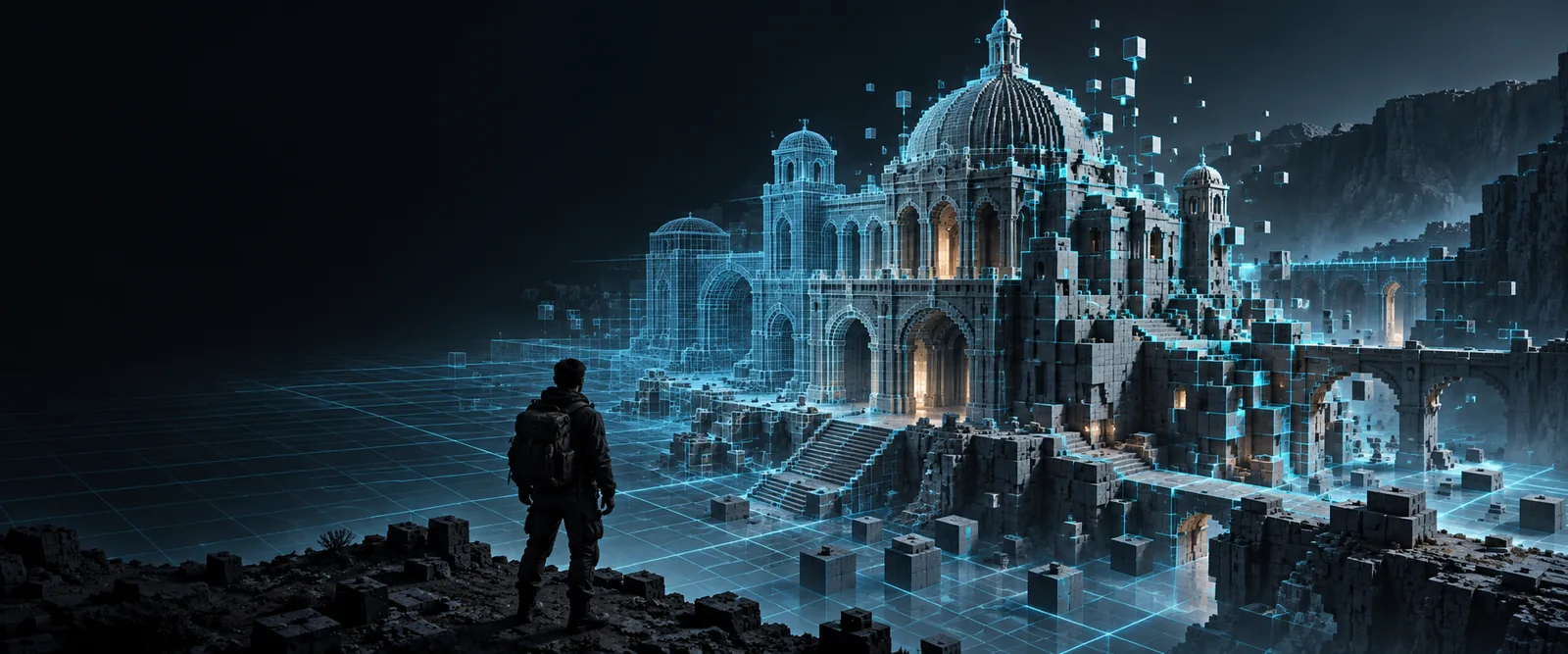
Structure comparison
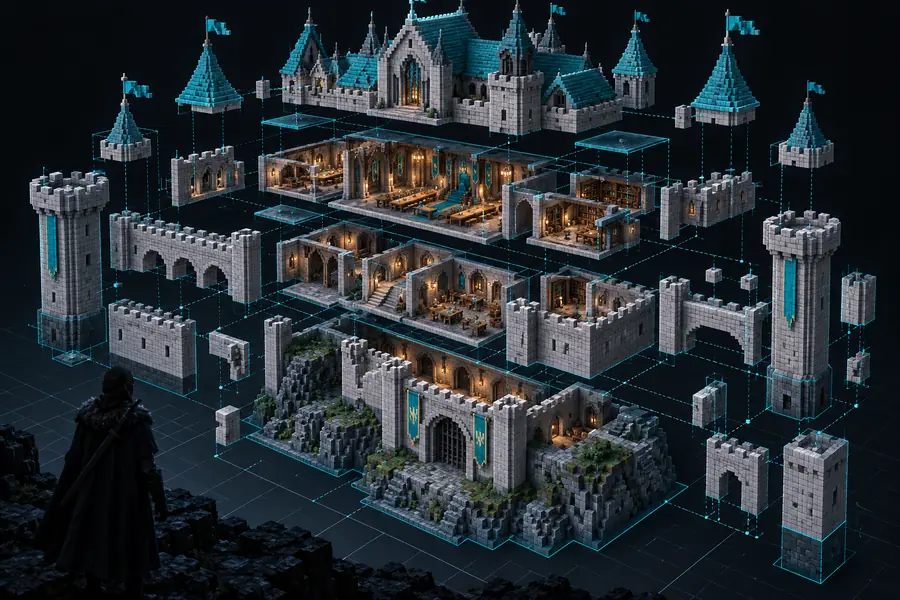
A GLB describes a 3D scene, while a schematic records block-based structure data. The comparison below frames the change from visual geometry to Minecraft placement.
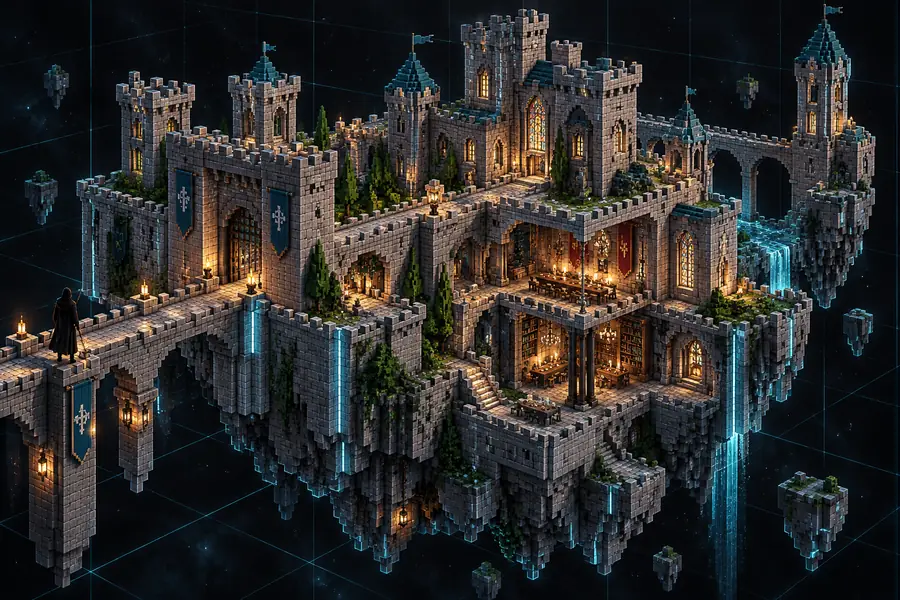
 GLB model
Schematic result
GLB model
Schematic result
Drag the divider to compare geometry with block placement.
GLB modelSchematic resultFormat anatomy
The output can preserve the broad shape and layout of an asset, but the two formats do not store the same kind of information.
Primary representation
GLB
Polygon mesh, materials, and scene transforms
Schematic
Blocks arranged in a 3D region
Surface detail
GLB
Textures and material appearance may be included
Schematic
Represented through block choice and placement
Curved geometry
GLB
Can remain smooth and continuous
Schematic
Approximated with stepped blocks
Scene scale
GLB
Uses model and scene units
Schematic
Uses a discrete block grid
Lighting
GLB
May reference materials, normals, or scene data
Schematic
Usually depends on the Minecraft environment
Empty space
GLB
Defined by mesh boundaries and scene objects
Schematic
Defined by the selected structure region
Editing model
GLB
Mesh and object editing tools
Schematic
Block editing and structure tools
Best use
GLB
Rendering, asset exchange, and 3D workflows
Schematic
Building, copying, and placing Minecraft structures
Output paths
Different building workflows need different representations. Use the sibling guides below to compare the destination that best matches your next step.
You want to move from a 3D asset toward a Minecraft build workflow with a familiar structure format.
The glb to minecraft guide explains the broader path from model input to a Minecraft-oriented result.
glb to minecraftYour project is organized around Bedrock structures rather than Java schematic tools.
The glb to mcstructure converter page focuses on the structure format associated with that workflow.
glb to mcstructure converterYou need a text-oriented representation for inspection, scripting, or a custom data pipeline.
The glb to minecraft json page covers a JSON-oriented destination for model data.
glb to minecraft jsonExample outputs
Inspect the output as a structure, not only as a thumbnail. Check silhouette, scale, unsupported detail, and whether the result fits the intended build area.
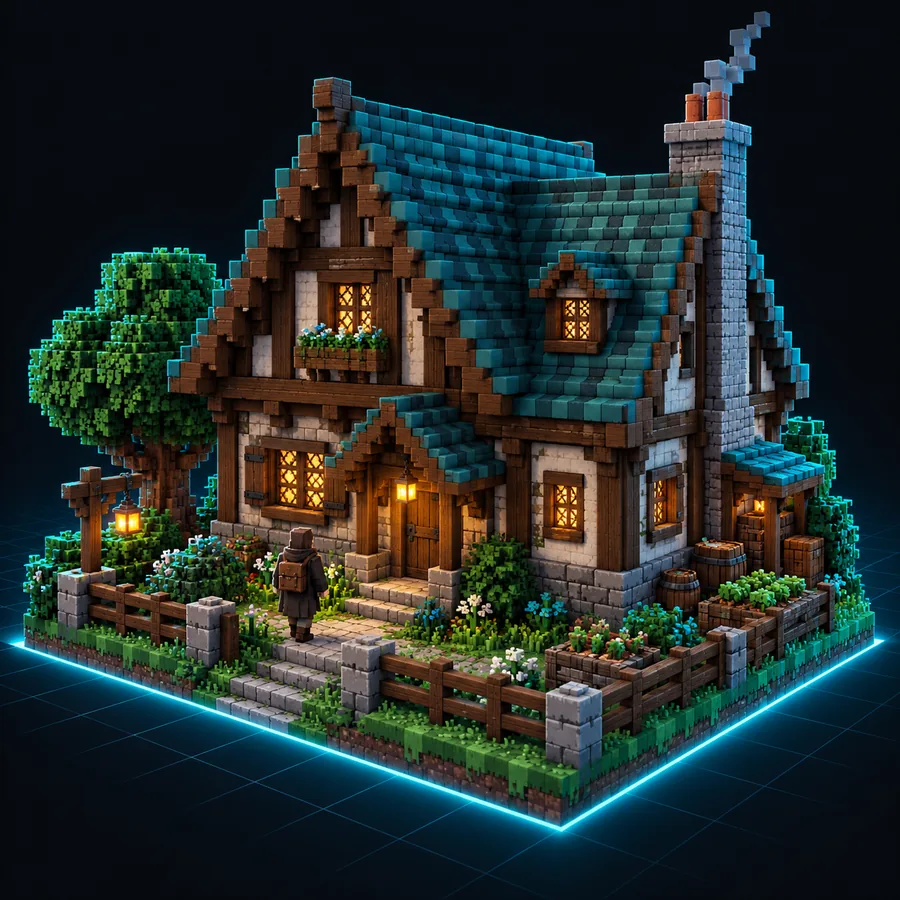 Shape
Shape
 Scale
Scale
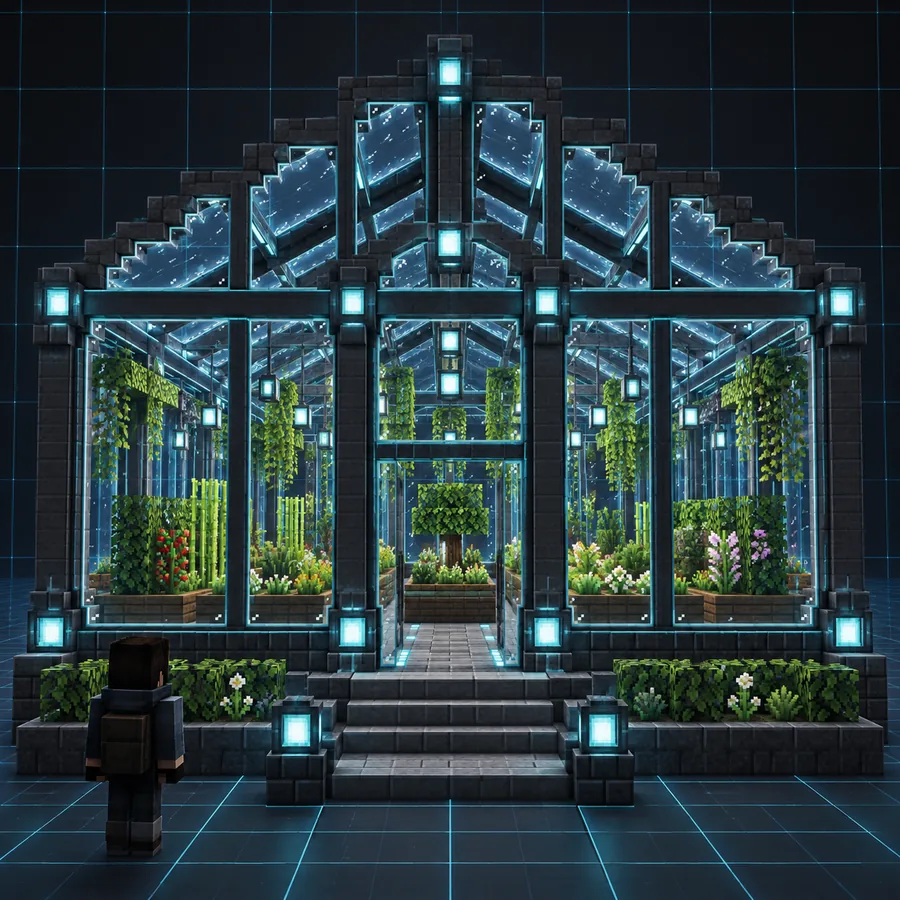 Detail
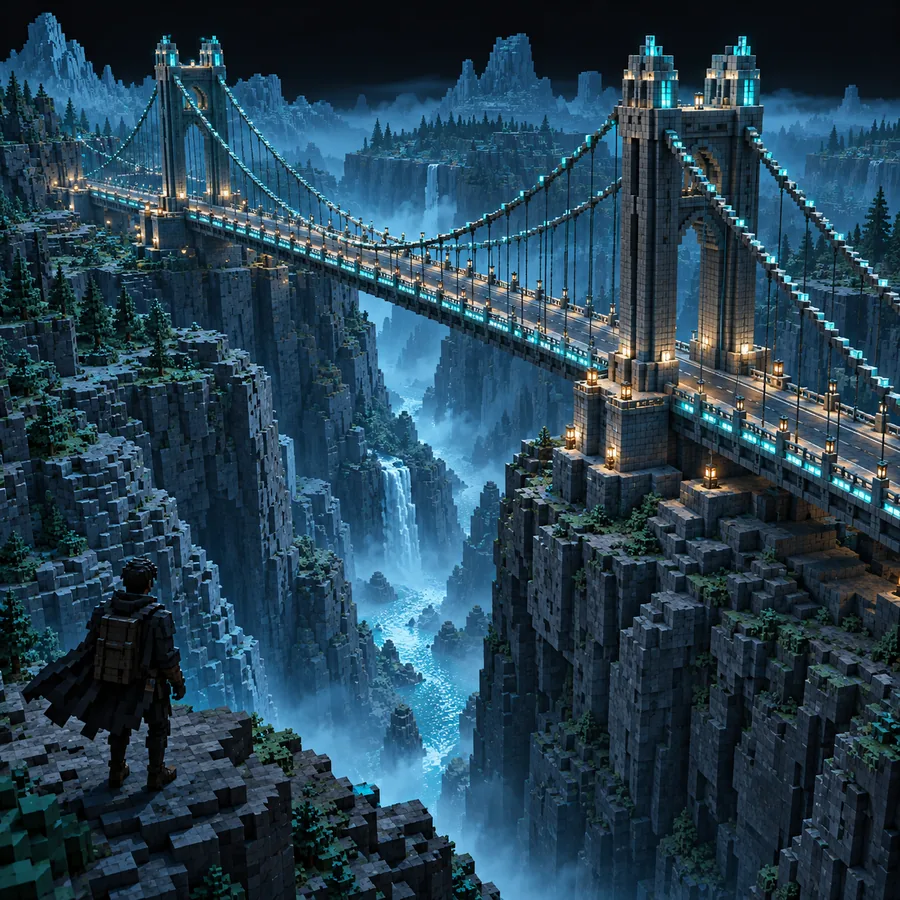 Footprint
Verification workflow
A short review catches most visible mismatches before you place the structure into a larger Minecraft build.
View the source and output from matching angles. Confirm that the main profile, openings, and major masses are still recognizable.
Measure the width, height, and occupied area against the intended build site. Look for unexpected empty space or oversized details.
Zoom into corners, curves, thin surfaces, and materials. Replace noisy or missing areas with deliberate block choices before final placement.
Next build step
Use the conversion workspace to continue with your asset, then review the resulting structure against the original GLB before adding it to a larger build.
Open conversion workspaceCommon questions
These answers cover the format differences and review steps people commonly consider when moving a 3D model into a Minecraft structure workflow.
A GLB can be used as the source for a block-based structure workflow, but the result is not a one-to-one mesh copy. Curves, textures, materials, and scene details may need to be represented with discrete block choices.
Smooth surfaces, original texture detail, lighting behavior, and continuous material values are typically reduced or reinterpreted. The broad shape and major spatial relationships are the most useful parts to verify first.
Compare the output dimensions with the intended build area and inspect its footprint from several angles. Pay particular attention to thin parts, tall sections, and empty space around the source model.
No. They are different structure formats associated with different Minecraft workflows and tooling. Choose the destination based on the edition, editor, or pipeline where you plan to use the result.
JSON can be more convenient when you need readable data for inspection, scripting, or custom processing. A schematic is generally more directly oriented toward moving a block structure through compatible building tools.