Bedrock map builders
You have a GLB building and need a structure asset that can move into a Bedrock world workflow.
Start with the glb to minecraft route when you want the broader conversion path and room to validate the result.
glb to minecraftBedrock structure workflow
A glb to mcstructure converter workflow helps turn a 3D asset into a Minecraft Bedrock-ready structure, then gives you a clear path for checking and importing the result.
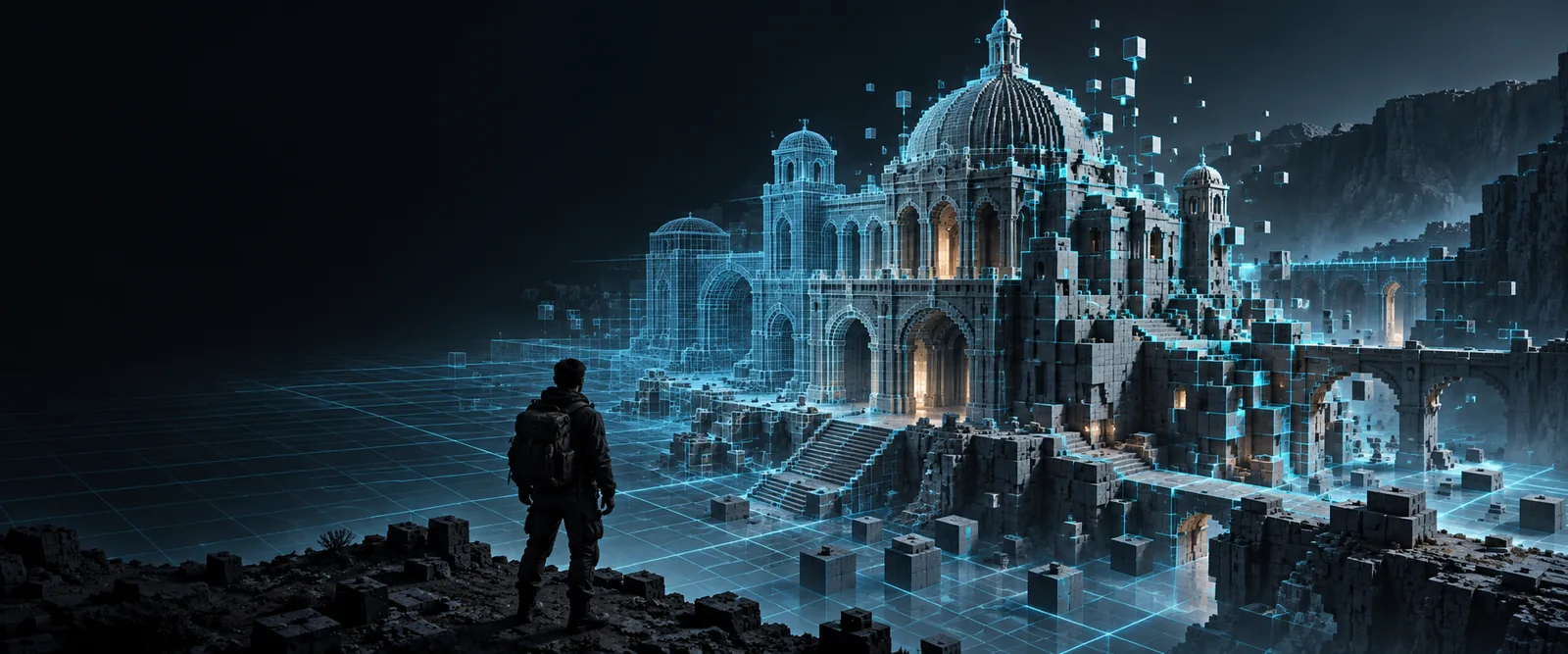
Visual handoff
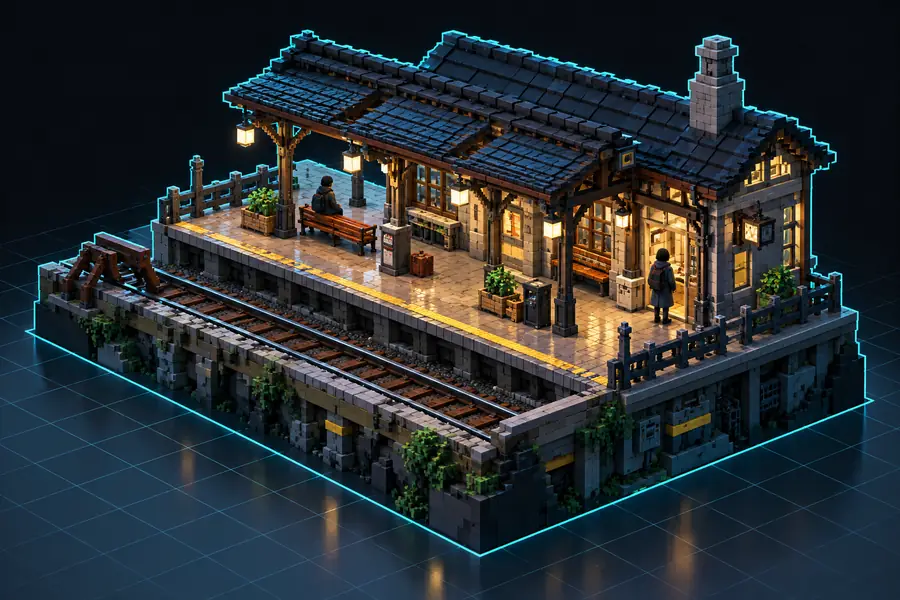
Compare the source asset with the block-built result before moving it into a Bedrock world or project.
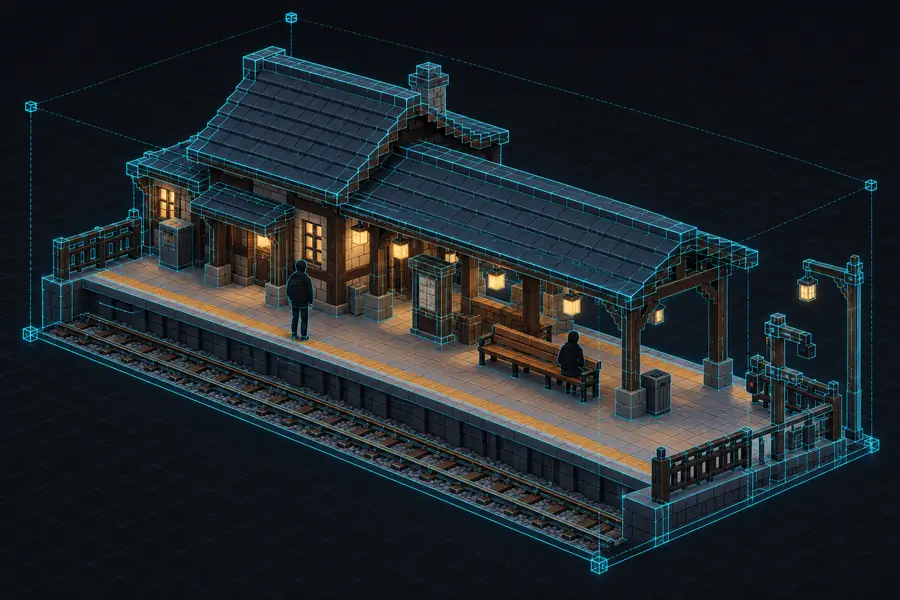
 GLB source
MCStructure result
GLB source
MCStructure result
Use the divider to inspect silhouette, scale, and major building details.
GLB sourceMCStructure resultChoose your next step
Different Minecraft workflows need different outputs. Pick the route that matches the software or edition you plan to use.
You have a GLB building and need a structure asset that can move into a Bedrock world workflow.
Start with the glb to minecraft route when you want the broader conversion path and room to validate the result.
glb to minecraftYour destination is a Java building tool or a schematic-focused editor rather than Bedrock.
Use the glb to schematic route when the receiving application expects a schematic-style structure.
glb to schematicYou want to inspect or adapt Minecraft-oriented JSON data alongside the converted structure.
The glb to minecraft json route is a better fit for reviewing structured output before integration.
glb to minecraft jsonYou need to compare the original mesh with a block approximation before committing it to a map.
Keep the source GLB beside the generated file and test a small, representative build first.
MCStructure conversion workflowFormat check
MCStructure files are most useful when the destination edition, folder location, and structure name are all confirmed before testing.
Primary role
GLB source
Mesh-based 3D asset
MCStructure destination
Minecraft Bedrock structure asset
Typical content
GLB source
Geometry, materials, and scene data
MCStructure destination
Block arrangement and structure metadata
Main destination
GLB source
3D viewer or conversion workflow
MCStructure destination
Bedrock world or project structure workflow
Scale concern
GLB source
Model units and object dimensions
MCStructure destination
Block footprint and build height
Material behavior
GLB source
Textures or material references may be present
MCStructure destination
Materials become an interpreted block palette
Validation step
GLB source
Check the original silhouette and orientation
MCStructure destination
Load a test copy and inspect placement
Best preparation
GLB source
Remove hidden objects and unused scene parts
MCStructure destination
Use a clear structure name and known project path
Related routes
If the receiving tool changes, these sibling workflows help you choose a compatible destination without rebuilding your source asset.
Know the boundaries
A conversion can produce a usable structure while still needing careful checking at the destination. These are the limits to plan around.
A structure prepared for Bedrock may not open directly in a Java-only editor or schematic workflow.
Workaround
Confirm the receiving edition first, then use the sibling route that matches its expected format.
The imported build can appear too large, too small, rotated, or offset when the source scene uses unexpected units or axes.
Workaround
Normalize the GLB before conversion and test with a small copy in the destination world.
A mesh texture is not the same thing as a Minecraft block palette, so colors and surface detail can change.
Workaround
Treat the first result as a block approximation and replace key materials manually.
Thin surfaces, internal details, unsupported objects, and highly detailed shapes may not survive a block-based conversion.
Workaround
Simplify the source and prioritize the silhouette, entrances, and major landmarks.
Prompt examples
These example instructions focus on recognizable structure goals so you can adapt the wording to your own building, prop, or scene.
Convert this GLB into a Bedrock MCStructure: preserve the courtyard, columns, stairs, and main temple silhouette with a warm sandstone palette.
Turn this GLB into an MCStructure for Bedrock: keep the floating island outline, central platform, supports, and readable sci-fi layers.
Convert this GLB to a Minecraft Bedrock structure: retain the watchtower footprint, roof shape, doorway, and major stone-and-wood sections.
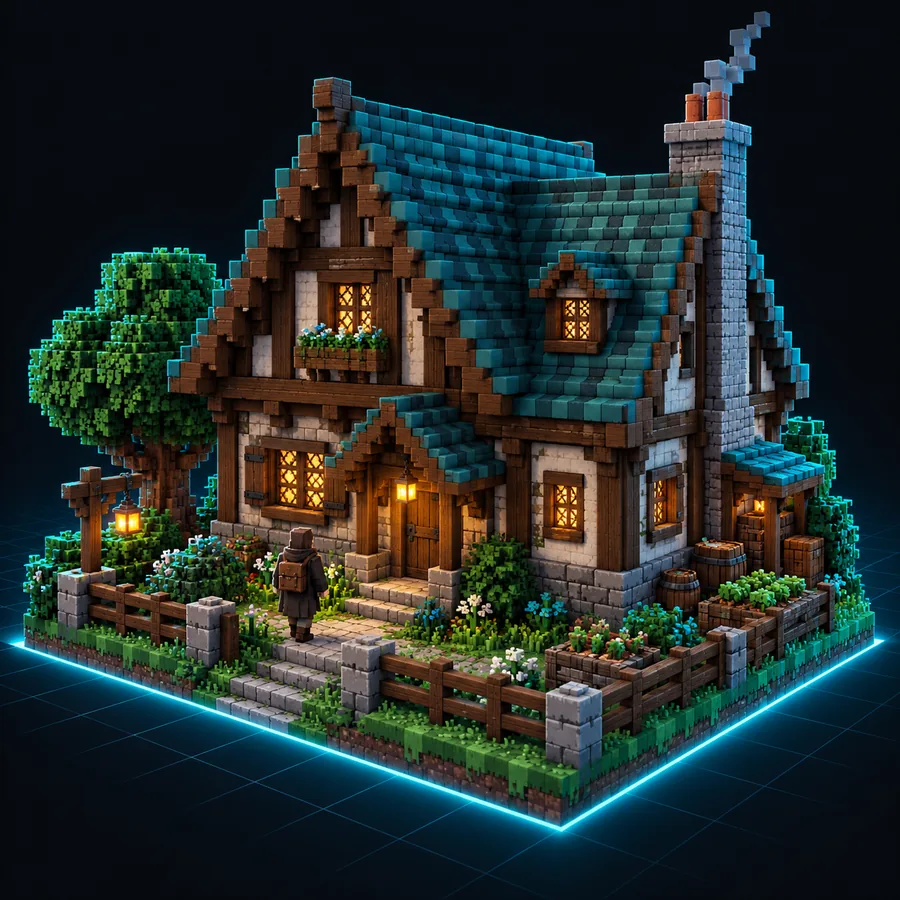 1
Architecture
1
Architecture
 2
Sci-fi
2
Sci-fi
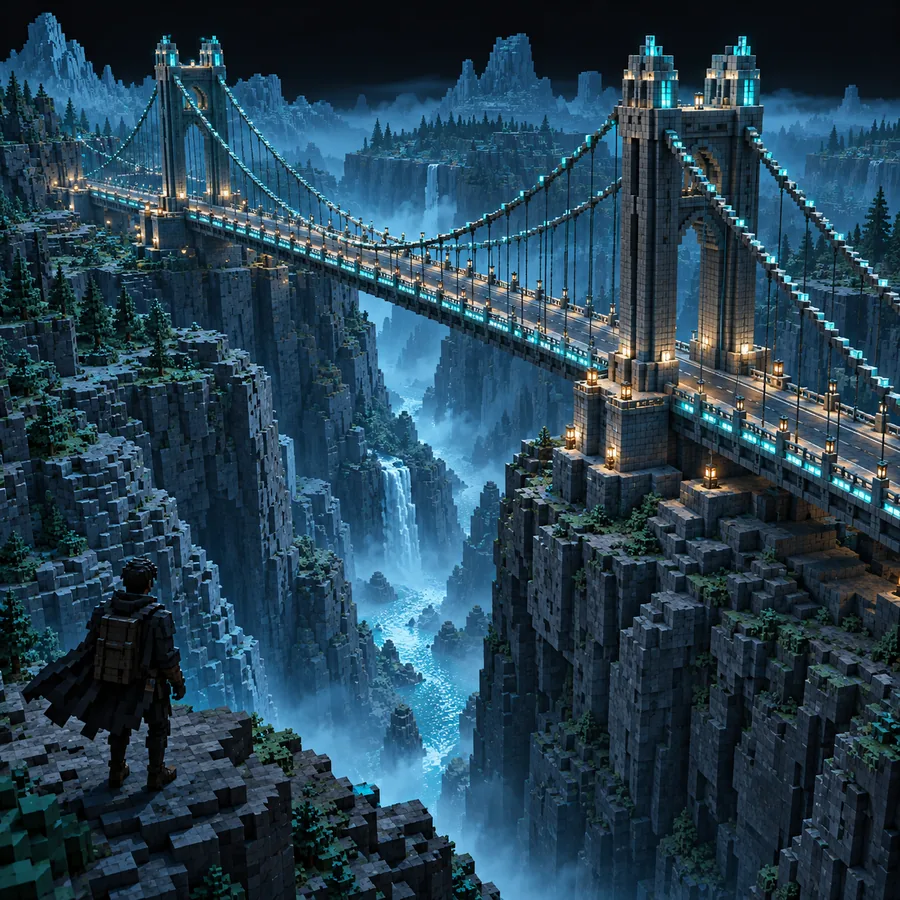 3
Medieval
3
Medieval
Name the features that must survive conversion, then specify the palette, orientation, and intended Bedrock use.
Format context
The route from a modern 3D scene to a Minecraft structure reflects several layers of file-format and game-tool evolution.
The glTF 2.0 specification established a practical way to package scenes, meshes, materials, and animations for real-time applications.
Minecraft Bedrock creators increasingly use structure-oriented tools and project folders to move reusable builds between worlds.
Mesh-to-block workflows focus on footprint, silhouette, palette, and placement rather than preserving every polygon or texture detail.
A reliable workflow begins by identifying whether the project needs a Bedrock structure, a schematic, or another Minecraft-oriented output.
Ready to test
Send a representative GLB through the conversion workflow, then inspect the footprint, palette, orientation, and import location before using it in a larger build.
Convert my GLBVariant FAQ
Answers for creators deciding how to prepare and validate a GLB for a Minecraft Bedrock structure workflow.
It translates a GLB scene into a Minecraft Bedrock-oriented structure workflow. The result is a block-based interpretation, so geometry, materials, and fine details may be simplified rather than copied exactly.
No. MCStructure is associated with Bedrock workflows, while Java tools commonly expect different formats. Confirm the edition and receiving application before you convert, or use a schematic-oriented route instead.
The source GLB may use units or dimensions that do not map cleanly to Minecraft blocks. Check the model scale, choose a representative object for testing, and verify the footprint before importing the full scene.
Not necessarily. A texture or material from the original mesh must be interpreted as a block palette, so colors, transparency, and small surface details can change. Simplifying materials before conversion usually makes the result easier to inspect.
Check orientation, placement, overall height, major openings, palette choices, and missing thin or internal details. Compare the imported build with the original GLB before using it as a finished map asset.